The Company Knowledge Base Guide
TendHunter’s Company Knowledge Base centralizes your entire documentary assets — past proposals, expert CVs, certifications, and project references — to make them available to your AI Document Assistant. When preparing a response to a request for proposals (RFP), the assistant leverages this content to speed up drafting, strengthen proposal relevance, and identify the internal resources best suited to each opportunity.
Integrated with the AI Document Assistant, this feature relies on the documents you centralize to tailor its responses to your organization’s specific context: business terminology, methodologies, available expertise, and project history. The richer the knowledge base, the more accurate and aligned the generated content becomes with your positioning.
This guide walks you through how to build your knowledge base, organize it effectively, and make the most of its features when handling your tenders.
1. The Core Principle: “Upload Once, Use Everywhere”
The concept is simple yet powerful. The Knowledge Base is a centralized library where you store all of your reusable documents.
The problem it solves: For each new tender, you were likely having to manually locate and re-upload the same reference documents (certifications, CVs, etc.) into the Document Assistant.
The solution: With the Knowledge Base, you upload these documents only once. They then become instantly available within the AI Document Assistant’s workspace for every tender you add to a project. No more repetitive tasks. You build a single, always-accessible source of truth.
The more you feed it, the smarter the AI becomes. Each document added enriches the AI’s context, making its analyses, reports, and responses increasingly relevant and aligned with your know-how.
Availability: This feature is available for all accounts with an active Pro or Business subscription.
2. Build Your Library: Organization and Management
Accessing Your Knowledge Base
Access is centralized in your settings: Settings → Documents.
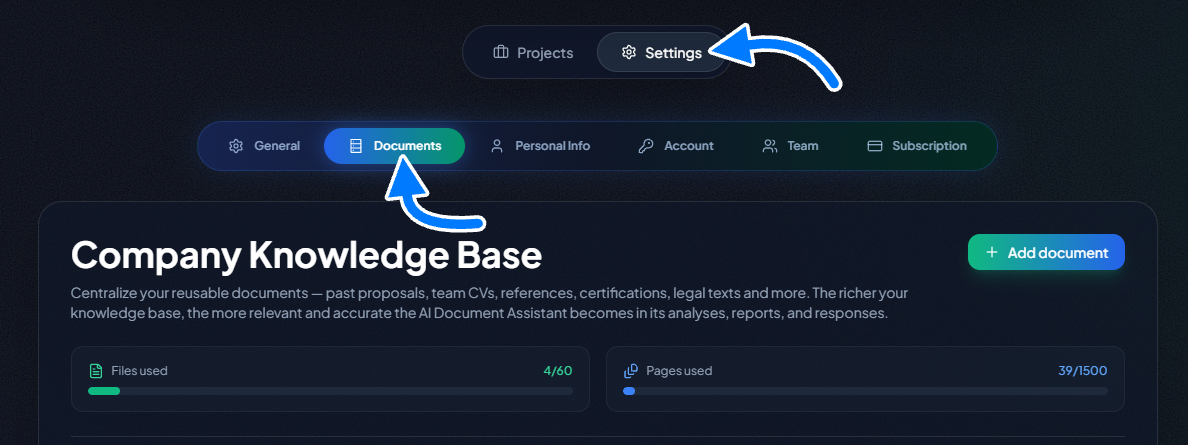
Organizing Your Documents
For efficient management, you can classify each uploaded document into predefined categories:
- Past proposals: To reuse wording and approaches that have already proven successful.
- Team CVs: So the AI can identify and suggest the most relevant profiles.
- Reference sheets: To demonstrate your experience on similar projects.
- Certifications: To quickly validate your compliance (ISO 9001, 27001, etc.).
- Legal: For your terms and conditions, standard clauses, and other legal documents.
- Internal documents / Other: For your CSR policies, corporate presentations, product sheets, etc.
How to Add and Manage a Document
- Click “+ Add a document”.
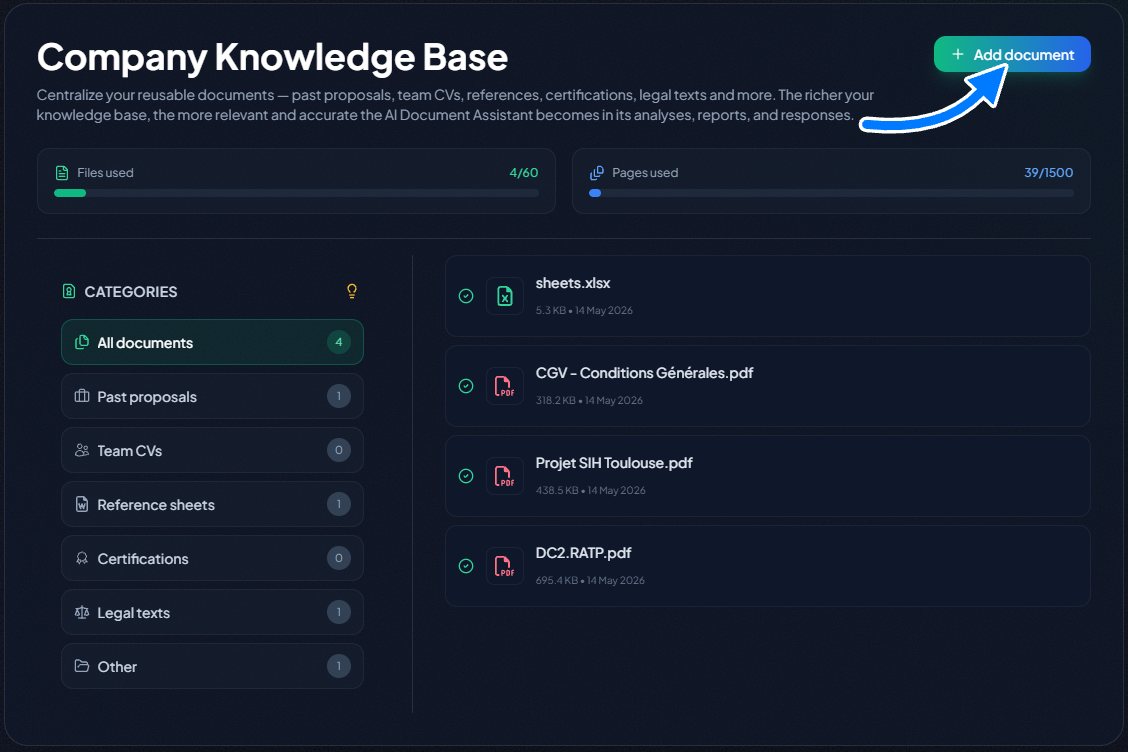
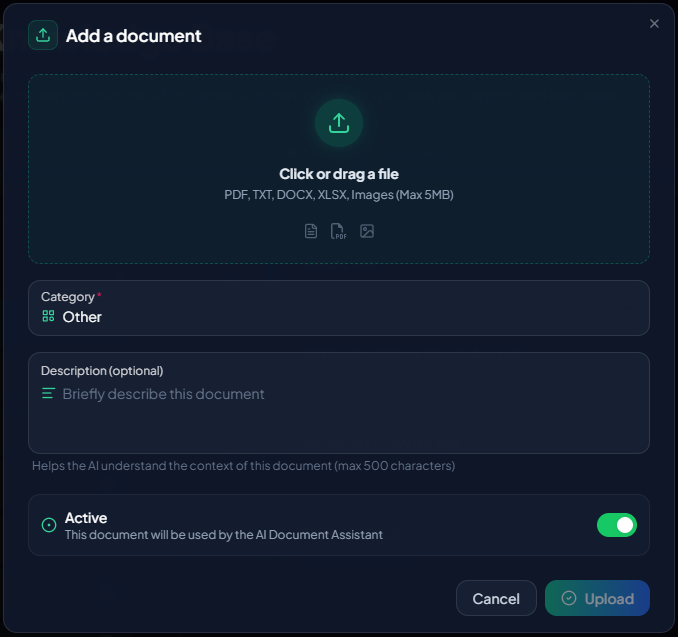
- Upload your file via drag-and-drop or by selecting it from your computer.
- Fill in the information:
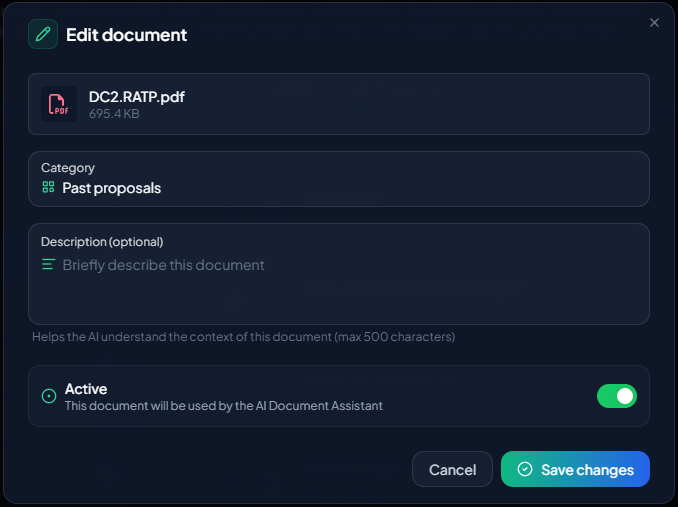
- Category: Choose from the list. (Required)
- Description: Add a short text for context. (Optional)
- Status :
- Active: The document will be available and usable by the AI Document Assistant.
- Archived: The document is kept but will not be offered in the assistant.
- Click “Upload”.
Once the document has been processed by our system, you can:
- View the file summary: simply click on the file name or on the eye icon.

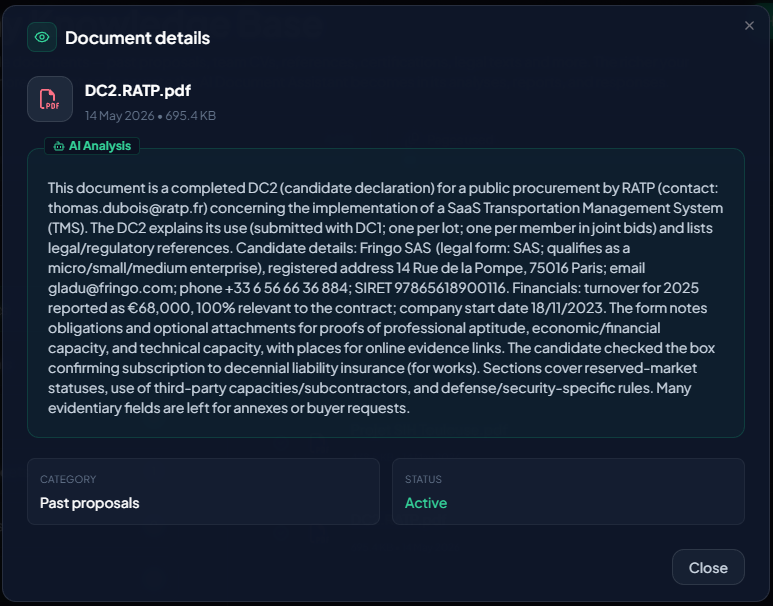
- Edit the file: click on the pencil icon for the relevant document to update the category, description, or status of the file (active or archived).

- Download the file

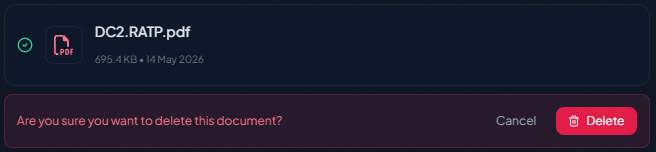
- Delete the file: click on the trash icon for the relevant document, then confirm the deletion.

Technical specifications
- Number of files: Up to 60.
- Number of pages: Up to 1,500 in total.
- Maximum size per file: 5 MB.
- Supported formats: PDF, DOCX, XLSX, Images (JPG, PNG), TXT.
3. Integration with the AI Document Assistant
Your Knowledge Base is natively integrated with the Document Assistant of every tender.
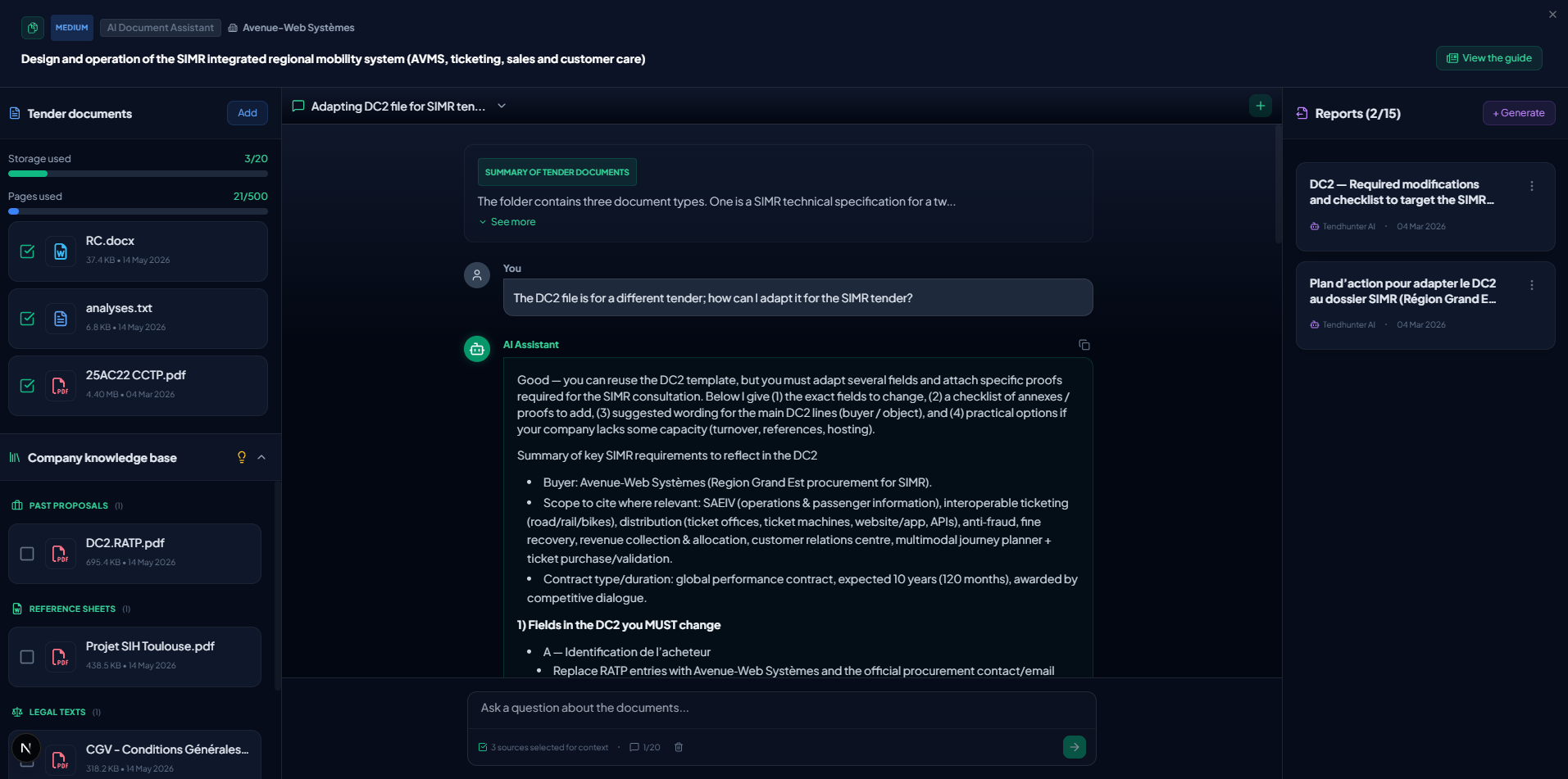
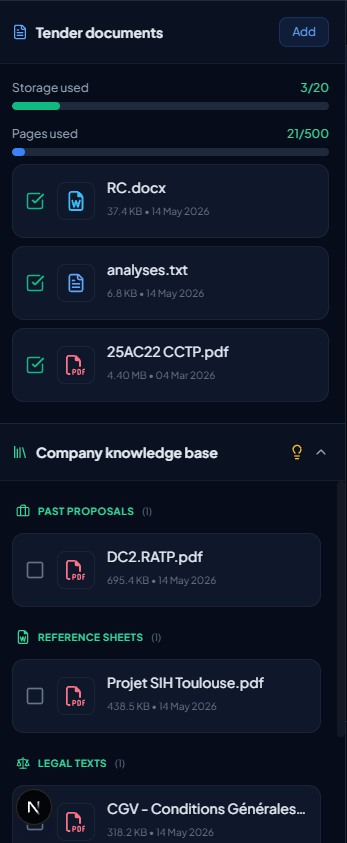
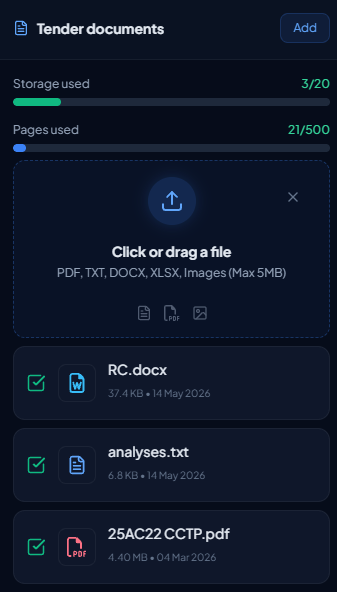
When you open the assistant, the “Sources” panel is split into two:
- Tender Documents: The files you upload specifically for this tender (technical specifications, regulations, etc.).
- Enterprise Knowledge Base: Your library of reusable documents.
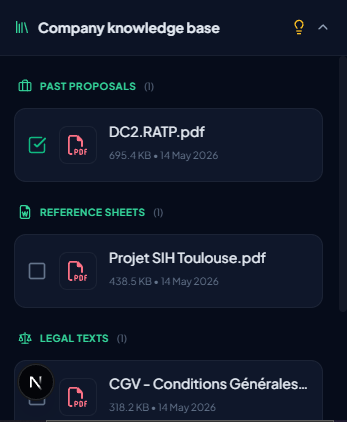
For each report you wish to generate, you have full control. Simply check the documents specific to the tender AND the relevant documents from your knowledge base that you want the AI to use as context.
4. Concrete Use Cases
Here's how this feature can speed up and improve your work.
Example 1: Generating a Technical Proposal
The user generates a report in the document assistant by selecting the tender’s technical specifications + 3 past proposals from the knowledge base. The AI draws inspiration from the structures and wording of previous offers to produce a draft tailored to the requirements of the new tender.
Example 2: Skills Verification
The user asks in the chat: “Which profiles on our team match the skill requirements of Lot 2?” The agent searches the CVs in the knowledge base and cross-references them with the requirements of the technical specifications to suggest the best-matching profiles.
Example 3: Contractual Risk Analysis
The user selects the tender’s administrative clauses + the company’s standard terms and conditions from the knowledge base. They request a comparative report identifying the differences between the buyer’s conditions and the company’s usual conditions.
Conclusion: Your Enterprise Knowledge, Amplified by AI
The Enterprise Knowledge Base is much more than a simple storage space. It is the brain of your tender response activity. By feeding it with your expertise, you transform TendHunter’s AI into an assistant that not only understands the market — but, more importantly, understands you.