The Tender Task Management Guide
Responding to a tender is a project in its own right. Between technical writing, gathering administrative documents, legal review, and price calculation, the steps are numerous and the contributors many. To address this complexity, TendHunter offers, alongside its overall tracking board, a dedicated Tender Task Management module.
While the tracking board provides an overview of how your opportunities are progressing, tender task management lets you operate at the ground level: planning, assigning, and monitoring every concrete action required to prepare your bids, directly within the platform.
No need to juggle between a tender tracking tool and an external task manager — everything is centralized in TendHunter for maximum efficiency and visibility at every stage of your response.
1. Why task management structures your process
The task management module is not an add-on: it is one of the operational pillars of your TendHunter workspace.
- Full centralization: From the moment an opportunity is detected through to the final task before submission, the entire lifecycle of your response takes place in a single tool. No more Trello, Asana, or external spreadsheets.
- Stronger collaboration: Who does what? By when? Thanks to task assignment and comment threads, team coordination becomes smooth and transparent. Every contributor knows exactly what they are responsible for.
- Complete visibility: At a glance, all project members get a clear, detailed view of how each bid is progressing.
Who is this feature for?
- Business plan: Take full advantage of collaborative power. Create tasks and assign them to one or more members of your team.
- Pro plan: Organize your personal work. You can create and track tasks for yourself, acting as a personal to-do list for each tender.
2. Practical guide: organize your work, task by task
2.1 Accessing the task workspace
Access is simple and intuitive:
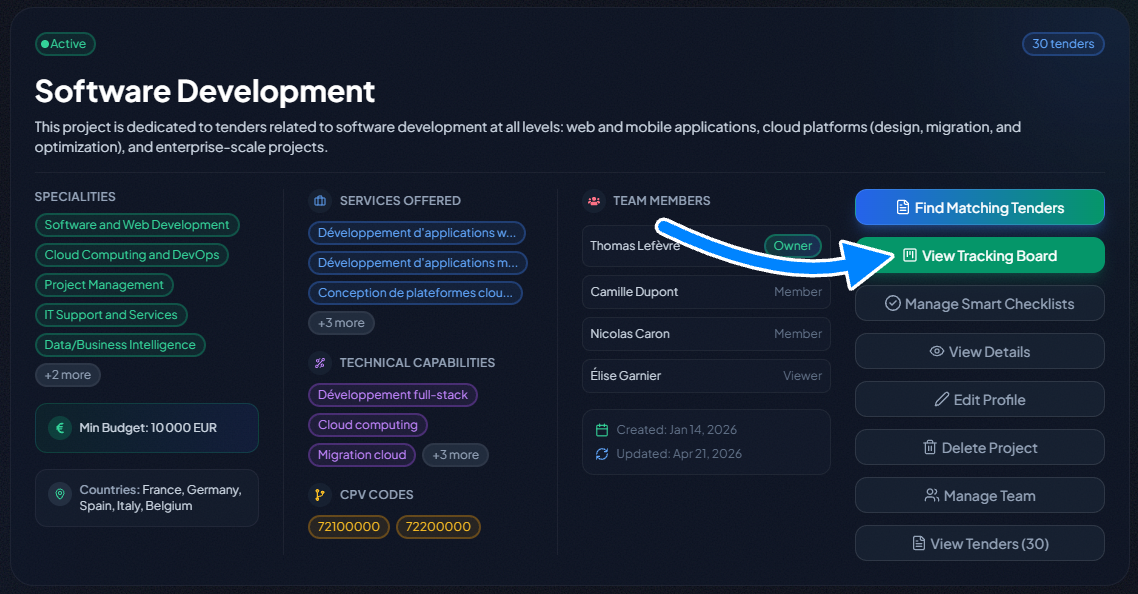
- Go to the Tracking board of your project.
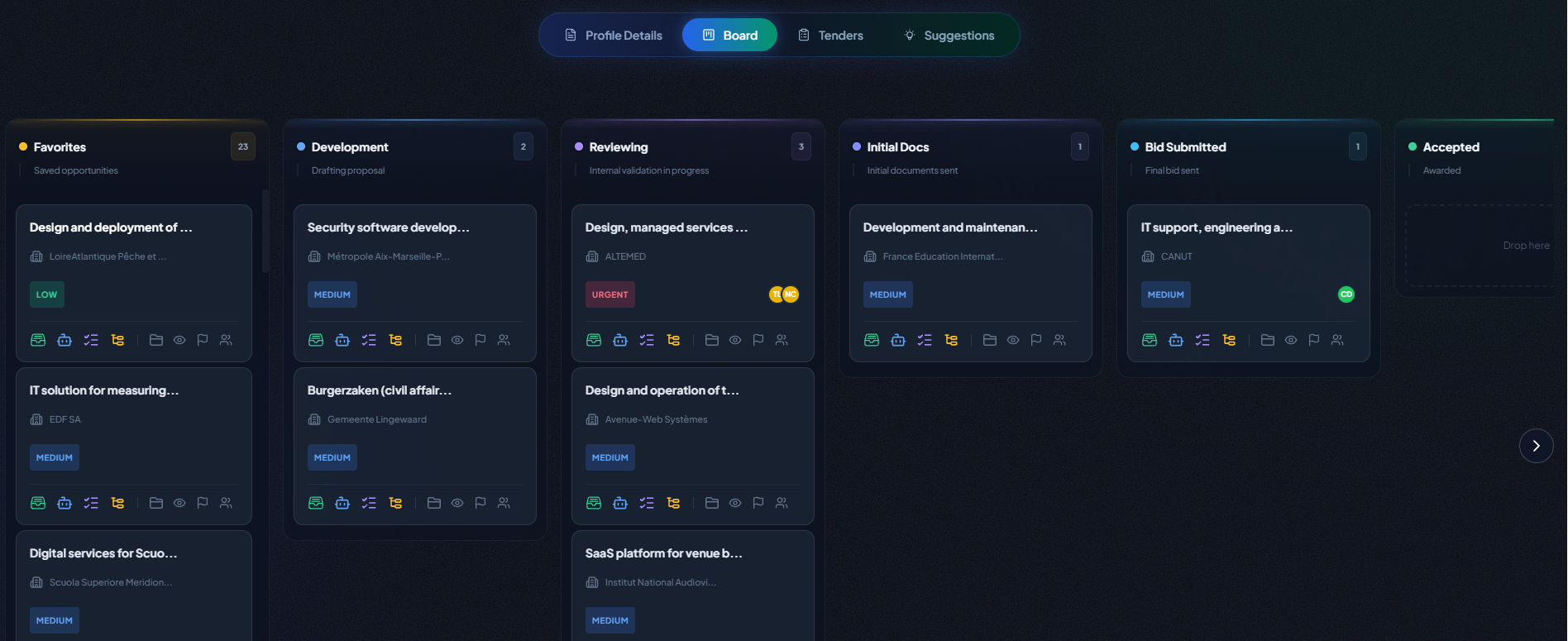
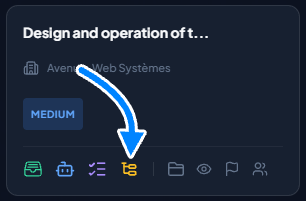
- On the card for the tender concerned, click the task management icon.
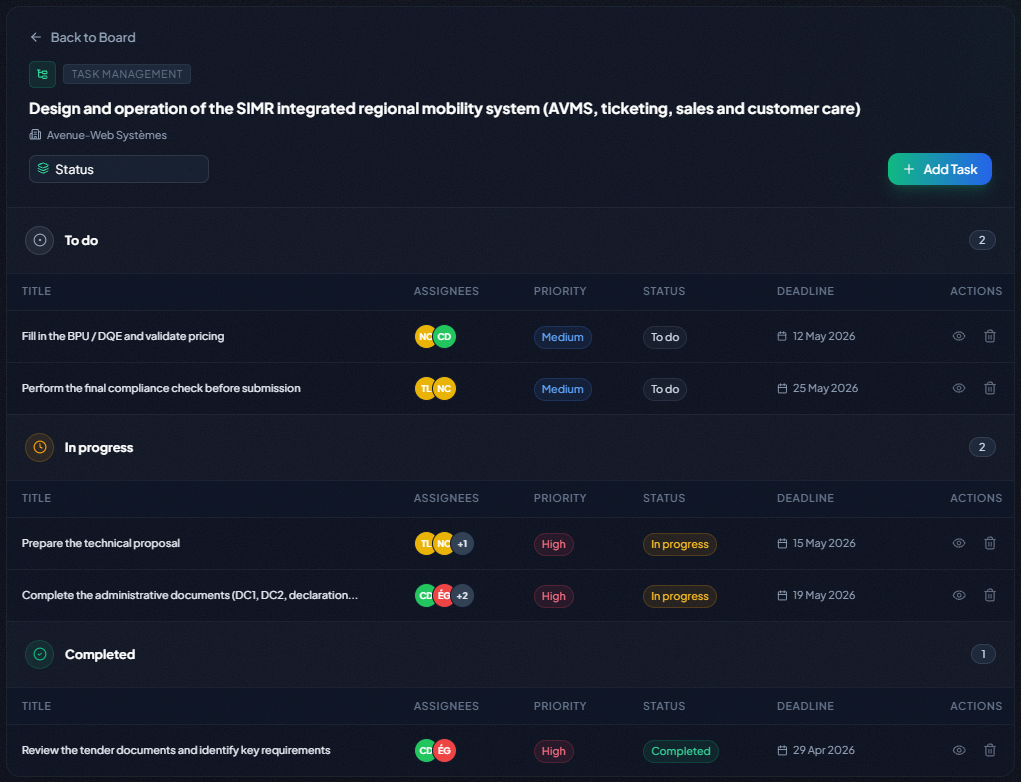
- A dedicated page opens, showing the task table for that specific tender.
2.2 Anatomy of a task
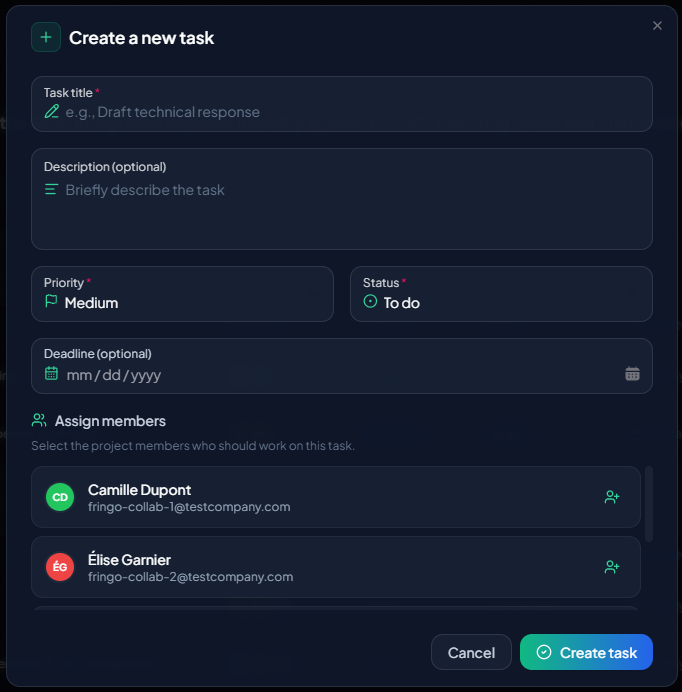
Each task is designed to be both simple and complete, with the following attributes:
| Attribute | Description |
|---|---|
| Title | Short, descriptive name of the task. (Required) |
| Description | Details of what needs to be done, instructions, useful links. |
| Priority | High, Medium, or Low. (Required) |
| Status | To do, In progress, Completed. (Required) |
| Deadline | Deadline by which the task should be completed. |
| Assigned members | One or more project members (Business plan). |
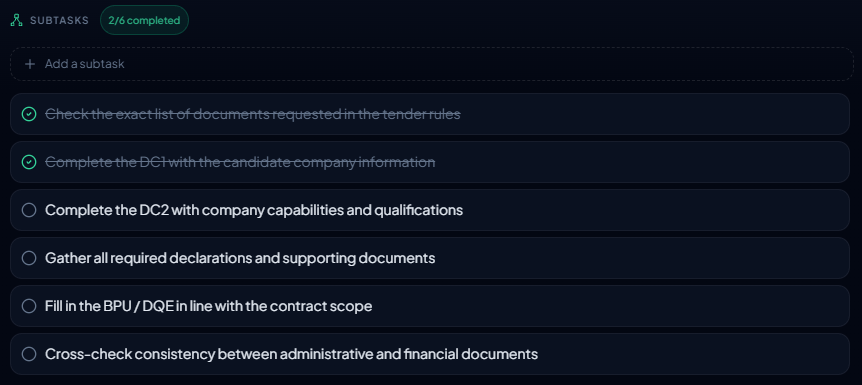
| Sub-tasks | Break a complex task down into smaller steps. |
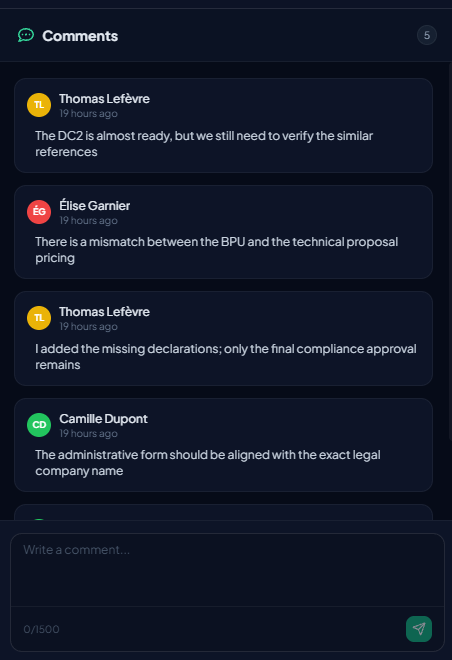
| Comments | A discussion thread for collaborating on the task. |
2.3 Managing your tasks day to day
The task management page is designed for speed and efficiency, with real-time collaboration: any change made by a team member is instantly visible to the others.
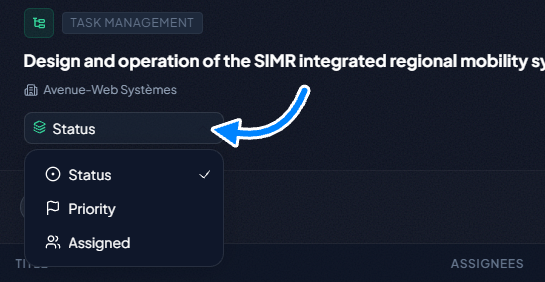
- Overview: The main view is a list of all tasks. You can group them by status, priority, or assigned to get the perspective you need.
- Quick creation: Click “Add task” to open a simple form and create a new action in seconds.

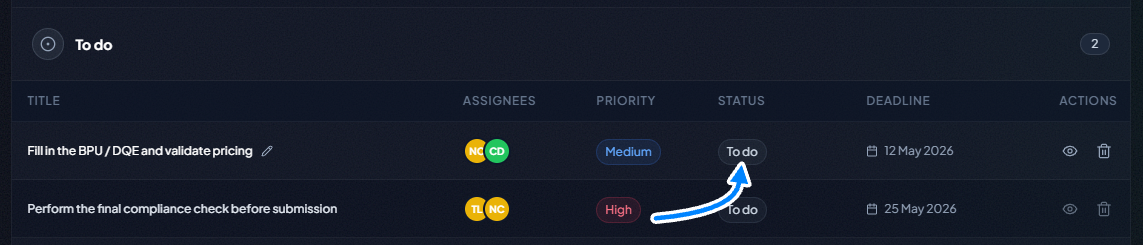
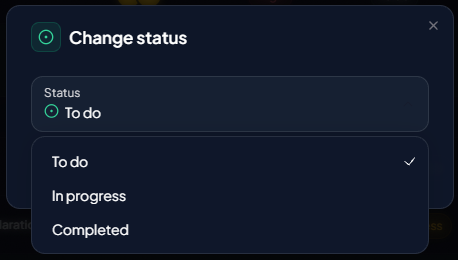
- Inline editing: No need to open each task to edit it. Click directly on the status, priority, or assignee in the table to change them on the fly. For the title and description, an edit icon opens a quick edit window.
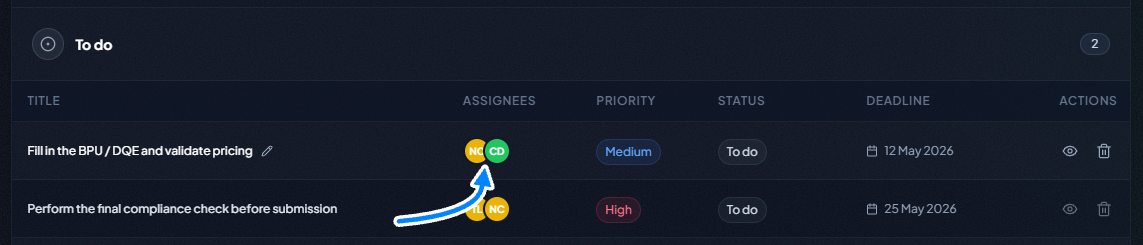
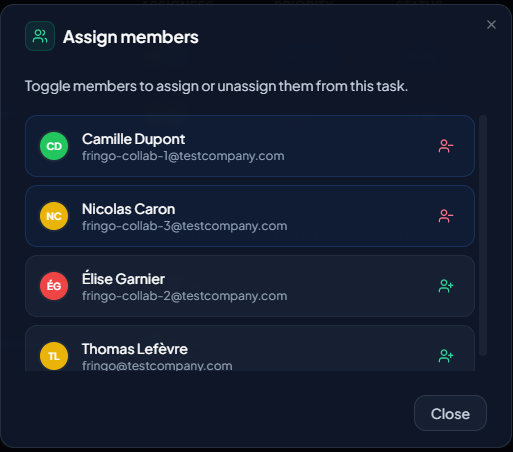
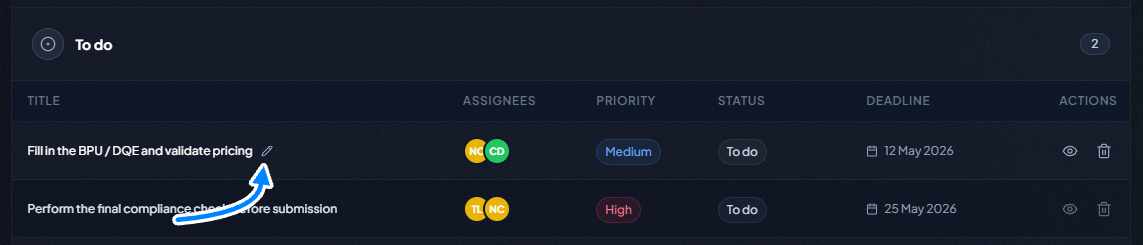
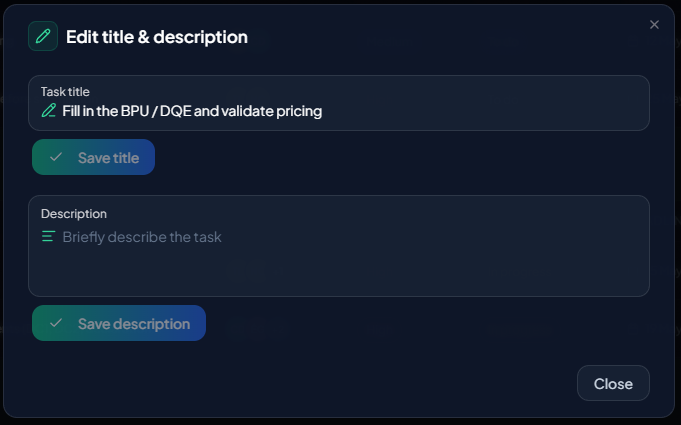
- Detailed view: For in-depth management, click the title of a task or the “eye” icon.

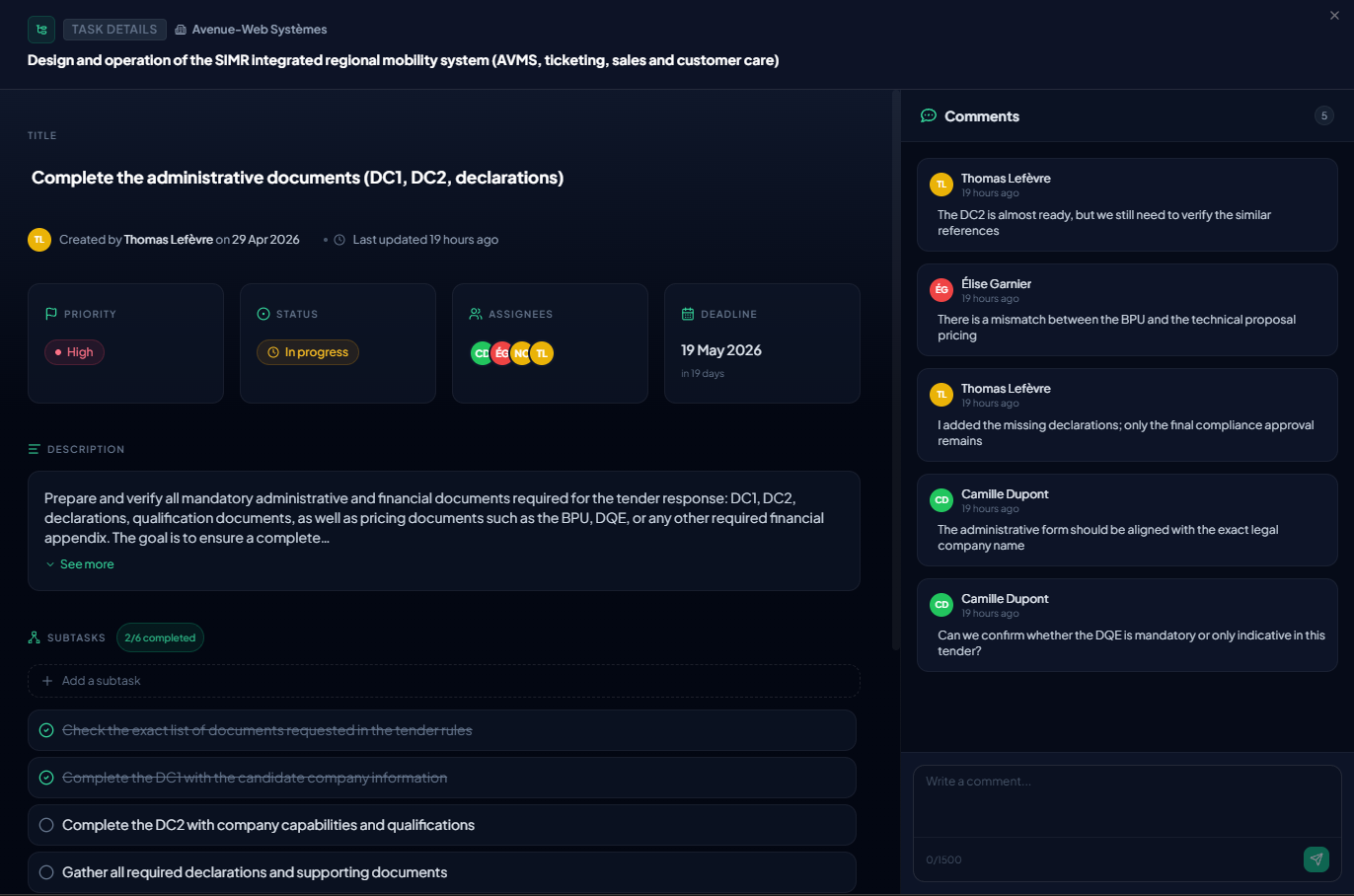
This opens the full card where you can:
- Manage sub-tasks.
- Add comments to communicate, ask questions, or share updates.
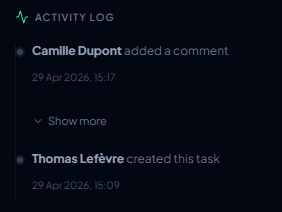
- View the activity log to see the full history of changes.
3. Roles and permissions: who does what?
To ensure structured collaboration, permissions are clearly defined:
- Who can access the task page?
- Company Administrators and all project members (Owner, Manager, Member, and Observer).
- Who can be assigned to a task?
- Only users who are members of the project.
- Who can manage tasks (create, edit, change status, etc.)?
- Company Administrators and all project members, except those with the Observer role.
- Who can comment?
- Company Administrators and all project members.
- Who can delete a task?
- Because this action is more critical, it is reserved for Company Administrators, the project Owner, and project Managers.
Conclusion
Tender task management ensures the connection between your overall strategy and day-to-day execution. By integrating detailed planning at the very heart of the workflow, TendHunter provides a single platform for the entire response process.
You gain in clarity, efficiency, and control: every step is tracked, and your team moves forward in sync to submit competitive bids.