The Smart Checklists Guide
TendHunter's AI Match Analysis is a powerful ally. In seconds, it gives you a 360-degree view of a tender: its score, strengths, risks, strategic advice, and more. But we know that every company is unique. Your decision-making criteria, your risk appetite, and your strategic priorities are your own. A civil engineering firm doesn't ask the same questions as a cybersecurity specialist when deciding whether to bid on an opportunity.
So, how can you integrate your internal expertise directly into TendHunter's analysis workflow?
The answer is our new feature: Smart Checklists. This tool allows you to create your own custom question templates and get AI-generated answers, fully contextualized for each tender.
1. Why Smart Checklists Will Change How You Decide
Smart Checklists are more than just a feature; they are a strategic layer of personalization on top of our existing analysis.
- Your Expertise, Automated: You define the questions. Smart Checklists allow you to formalize and automate the critical criteria that your internal experts would typically evaluate manually.
- Go/No-Go Decisions in Seconds: Instead of spending hours digging through documents to find answers to your specific questions, get targeted, AI-generated responses with a single click.
- A Complementary Analysis: Smart Checklists don't replace the AI Match Analysis dashboard; they enrich it. The standard analysis tells you, "Here's what the tender requires," while checklists answer the question, "Does this tender meet our specific criteria?"
- Standardization and Reusability: Create your checklists once at the project level and reuse them for every new tender you add. This ensures a consistent and standardized evaluation process across all your opportunities.
2. Step 1: Create Your Checklists (Project Level)
Your checklists are created at the project level, as your criteria are often linked to a specific strategy or market segment.
The process is simple:
- Navigate to your projects page and, on the relevant project card, click the "Manage Smart Checklists" button.
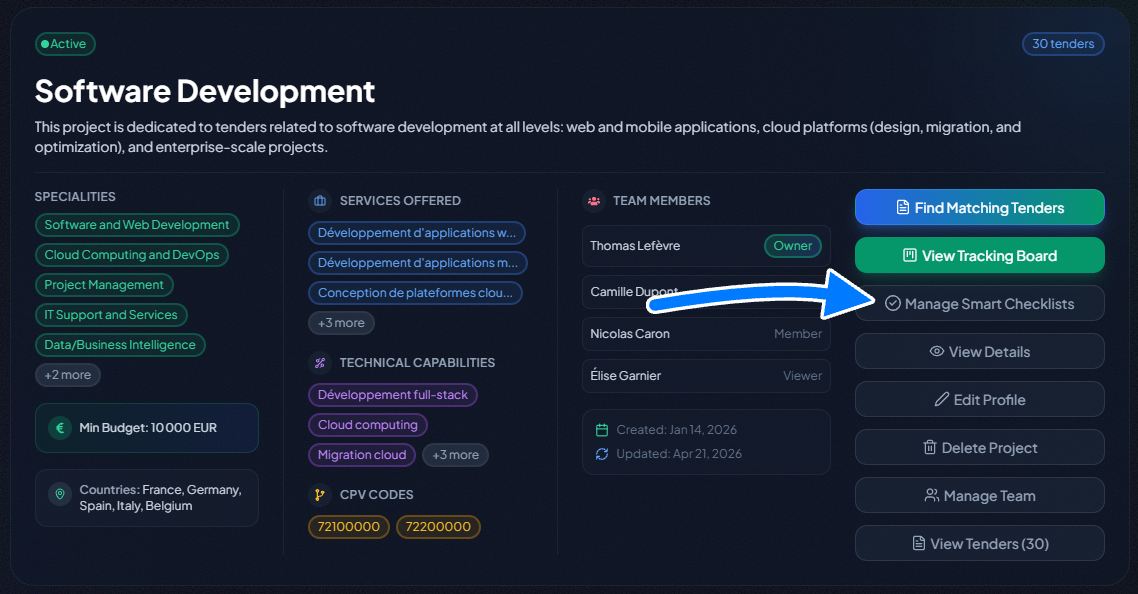
- On the new page, click to create a new checklist.
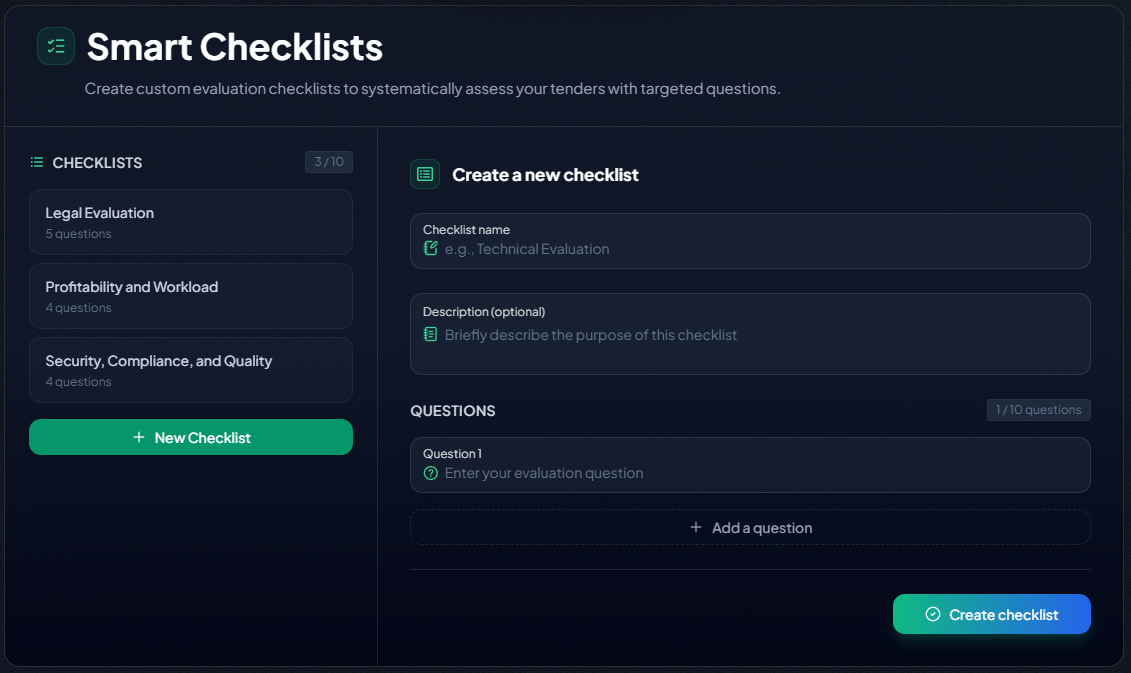
- Define your checklist:
- Checklist Name: Give it a clear, descriptive name. Examples: "Administrative & Legal Compliance," "Technical Feasibility - Web," "Financial Risk Assessment."
- Add Your Questions: Write the questions that are crucial to your decision-making process.
- Example Questions:
- "Does the estimated budget cover our labor costs and target margin?"
- "Do we already meet the required certifications (ISO, GDPR)?"
- "Does the described workload seem compatible with our team's availability for the next 6 months?"
- "Are the risks associated with the website's maintenance and future evolution acceptable?"
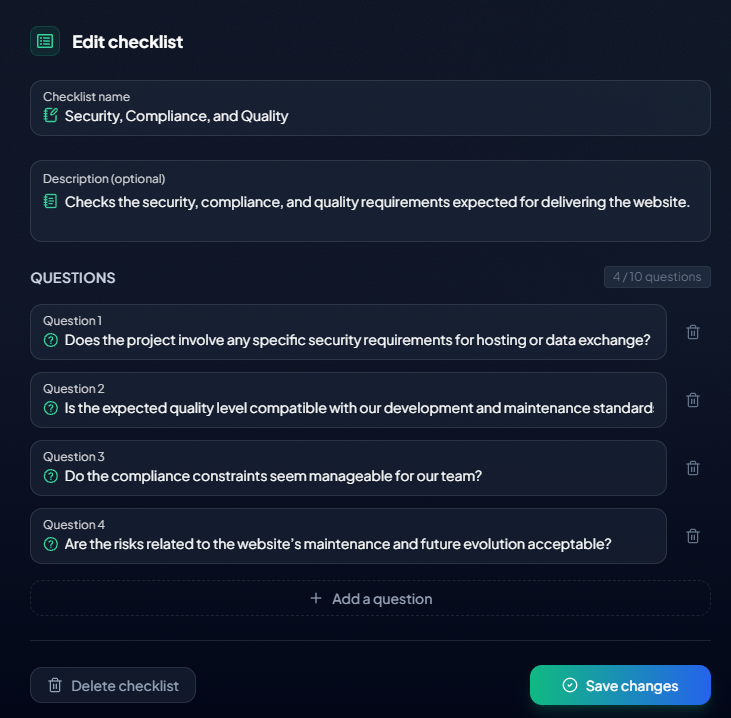
You can create up to 10 checklists per project, each containing a maximum of 10 questions.
3. Step 2: Get Targeted Answers in One Click (Tender Level)
Once your checklists are created, it's time to put them to work.
- Go to your Project's Tracking Board (the Kanban board).
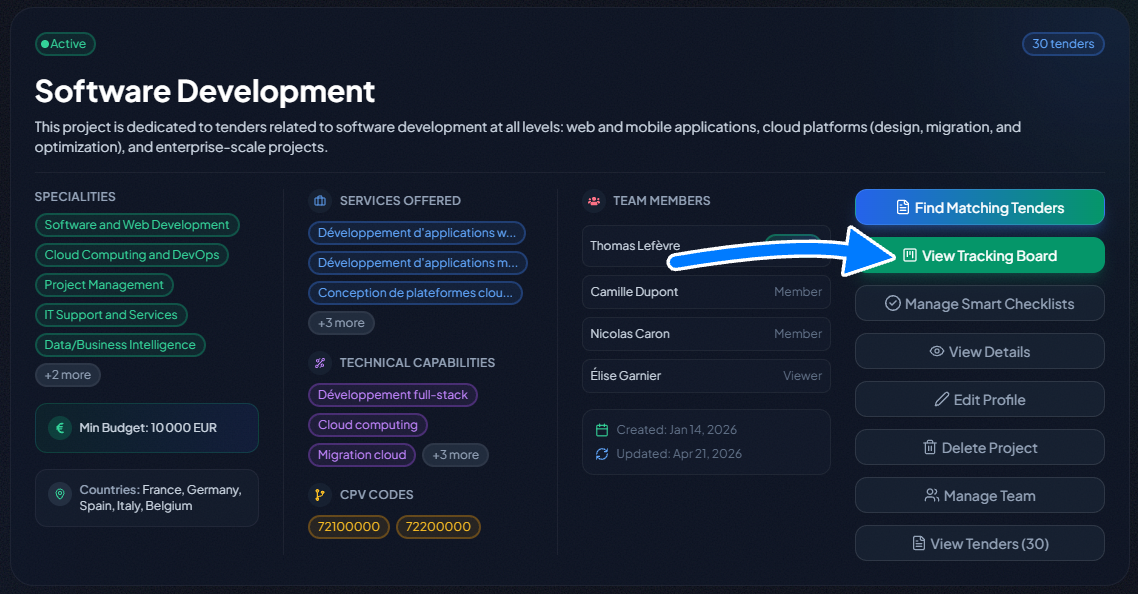
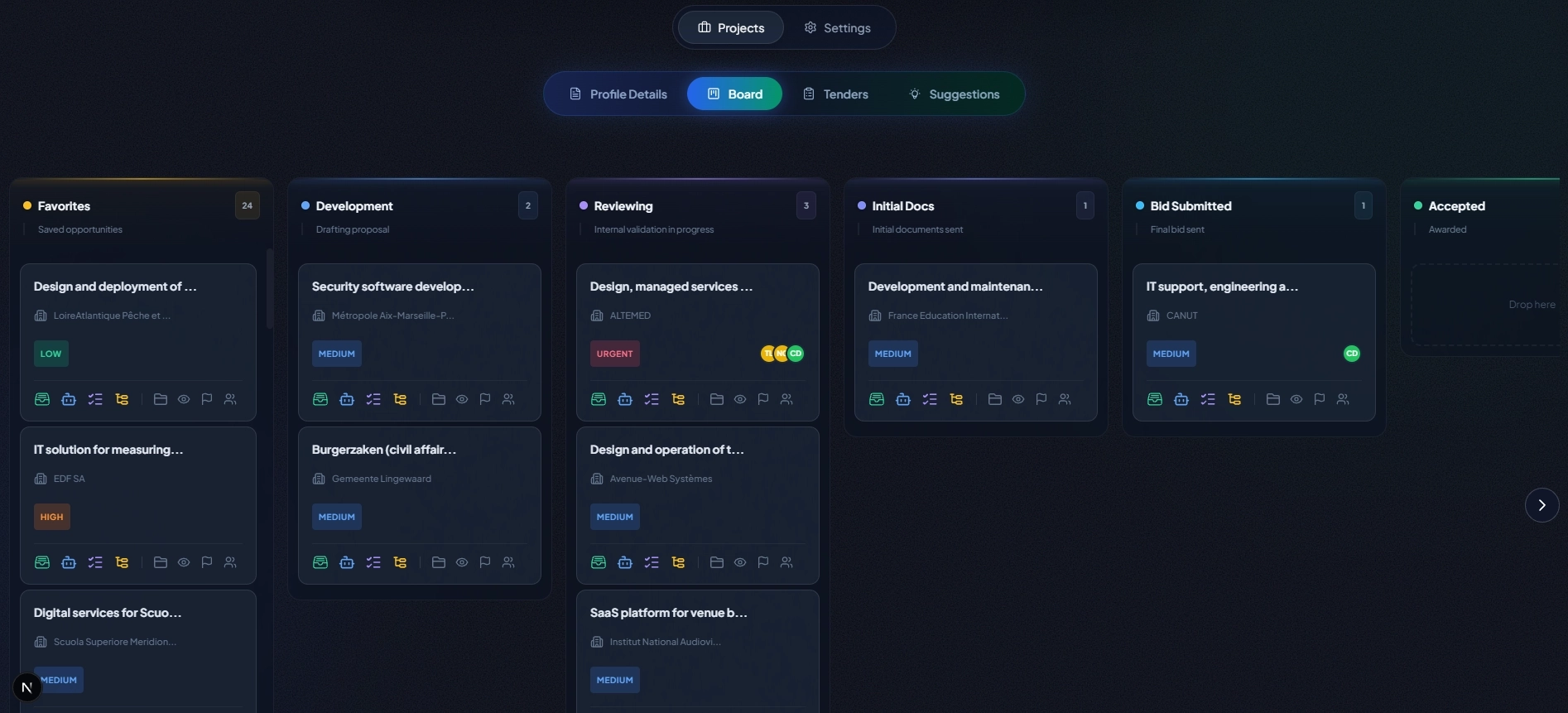
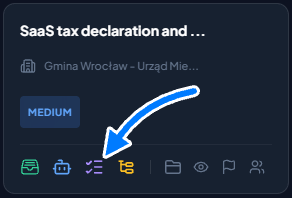
- On the card of the tender you want to evaluate, click the dedicated Smart Checklists icon.
- You are now on the execution page, organized into two panels:
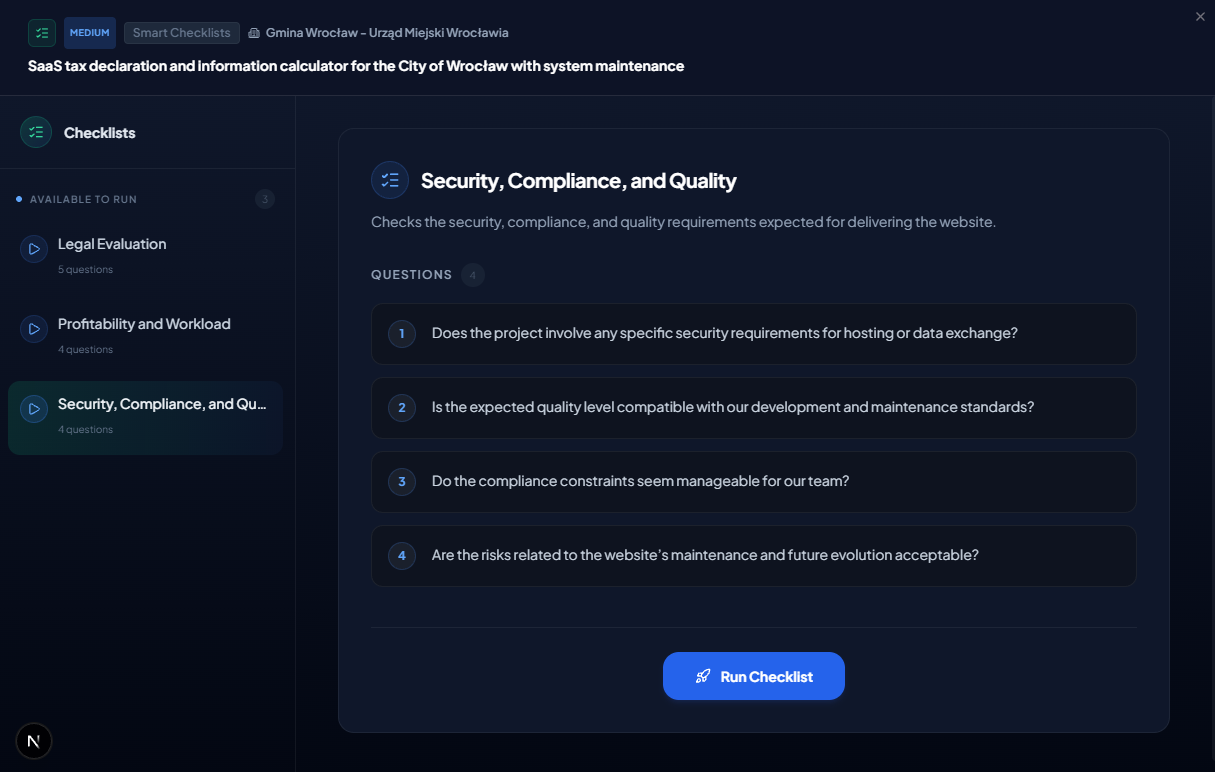
- Left Panel: You'll see a list of all the checklists you've created for this project. Each has a status: "Available" (ready to be run) or "Completed" (the answers have already been generated).
- Main Area: This is where the results are displayed.
- Run the analysis:
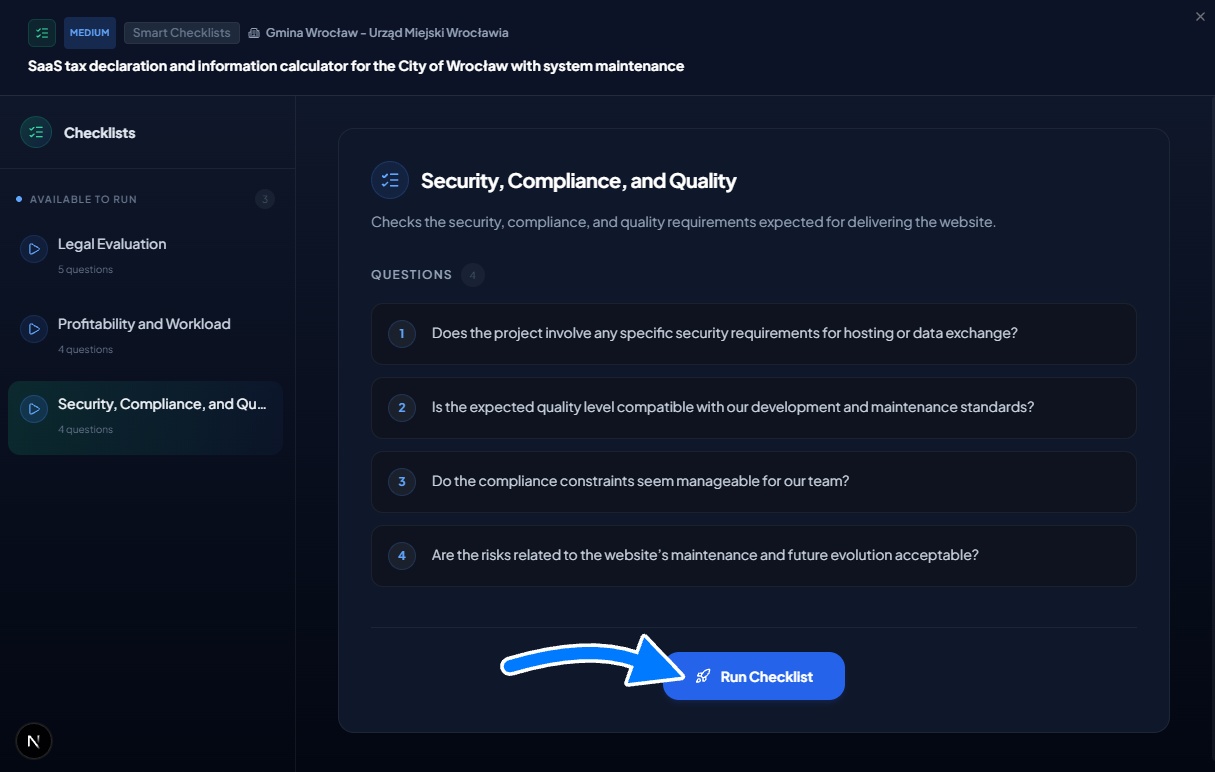
- Select an "Available" checklist from the left panel.
- Click the "Run Checklist" button.
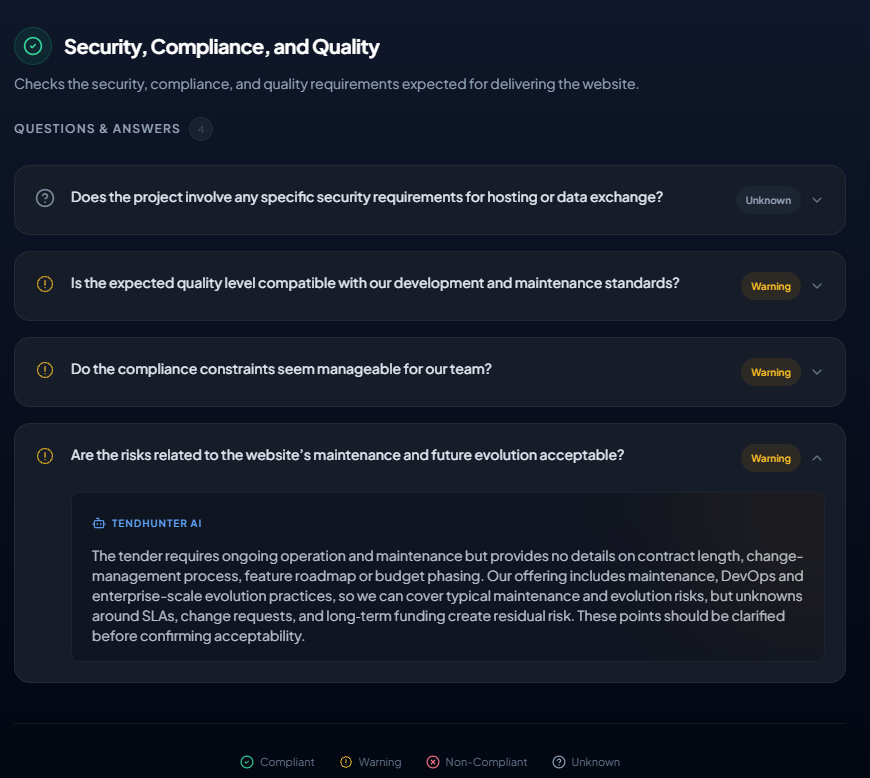
What happens behind the scenes? Our AI agent gets to work. It simultaneously considers all the data from the tender (description, lots, criteria...) AND all the data from your project (your skills, specialties, preferences...) to formulate a short, precise, and fully contextualized answer to each of your questions.
Once the process is complete, the answers appear next to each question. Your custom analysis grid is now complete.
4. Advanced Management and Best Practices
Smart Checklists are designed to be flexible.
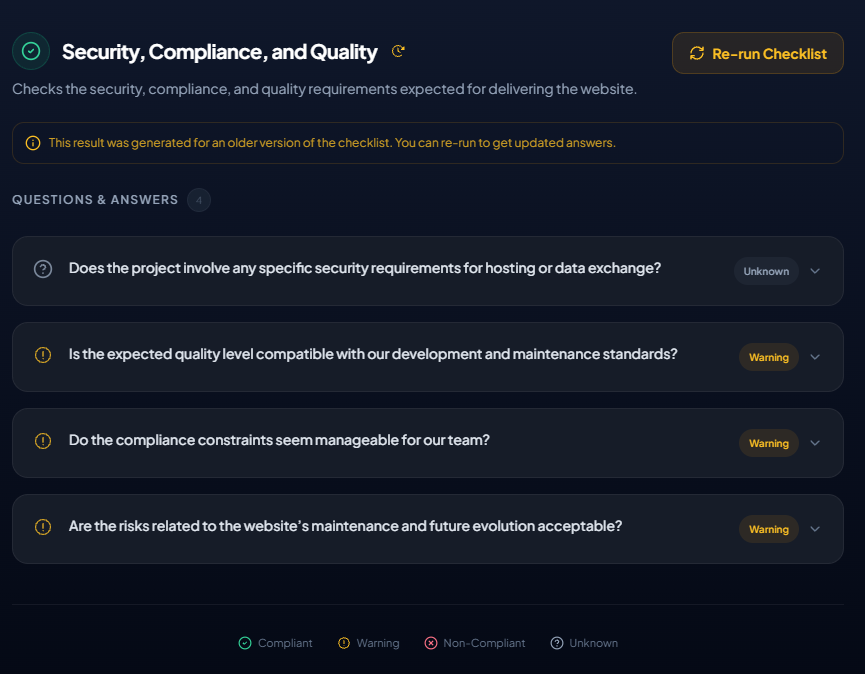
- Updating a Checklist: Have you modified a checklist at the project level (added or changed a question) after you've already run it on a tender? No problem. When you return to the checklist page for that tender, an indicator will notify you that the existing results are based on an older version. You can then re-run the checklist to get updated answers.
- Deleting a Checklist: If you delete a checklist at the project level, any results you had already generated with that checklist on your tenders will be preserved. This ensures you never lose the history of your past analyses.
Conclusion:
Smart Checklists transform AI analysis from an informative monologue into a strategic dialogue. You are no longer just an observer of the analysis; you are its conductor. By embedding your own expertise into the core of TendHunter's technology, you accelerate your decisions, make them more reliable, and ensure that every opportunity is evaluated against the criteria that truly matter to you.