The Guide to Team Management in TendHunter
Responding to a tender is rarely a one-person job. It's a complex process that requires seamless collaboration between team members. Managing this collaboration effectively and securely is the key to maximizing your chances of success.
At TendHunter, we designed our platform not just as an intelligent search engine, but as a true collaborative workspace. That's why we've integrated a powerful and flexible team management system, allowing you to structure your organization and your projects with precision.
This guide will explain the strategic benefits of this feature and show you, step-by-step, how to manage roles and permissions at both the company and project levels.
1. The Strategic Advantage of a Well-Managed Team
Why did we place such a strong emphasis on team management? Because it addresses fundamental needs for any company looking to win new business:
- Strategic Centralization: Your entire team works within a single, unified platform. No more disorganized email threads or multiple document versions. Every piece of information and every decision is centralized within the project on TendHunter.
- Enhanced Security and Control: Say goodbye to shared passwords. Each member accesses the platform with their own credentials. With a granular role-based system, you control who can see and do what, protecting your most strategic information.
- Operational Efficiency: By assigning specific roles (Manager, Member, Observer), you clarify everyone's responsibilities. The right people have access to the right tools to move the project forward, from analyzing the tender to preparing the proposal.
- Flexibility and Adaptability: Every project is unique. Our system allows you to build a custom team for each tender, including the relevant experts without giving them access to every project in the company.
2. The Foundation: Managing Your Company's Team
Everything starts with setting up your team at the company level. This is where you decide who has access to your global TendHunter workspace.
To access this section, a Company Admin must navigate to: Workspace -> Settings -> Team.
Company-Level Roles
There are two primary roles at the company level:
- Admin (Administrator): Has full privileges over the company account. By default, the account creator is an Admin. They also have full management rights over the company’s projects and their features. Their permissions include:
- ✅ Inviting new collaborators.
- ✅ Modifying the roles of all team members (including other Admins).
- ✅ Blocking or reactivating members.
- ✅ Deleting projects (an exclusive and critical security privilege).
- Collaborator: This is the standard role for your team members. A Collaborator can create and participate in projects and use all of TendHunter's operational features. However, they cannot manage the company team (invite, block, etc.).
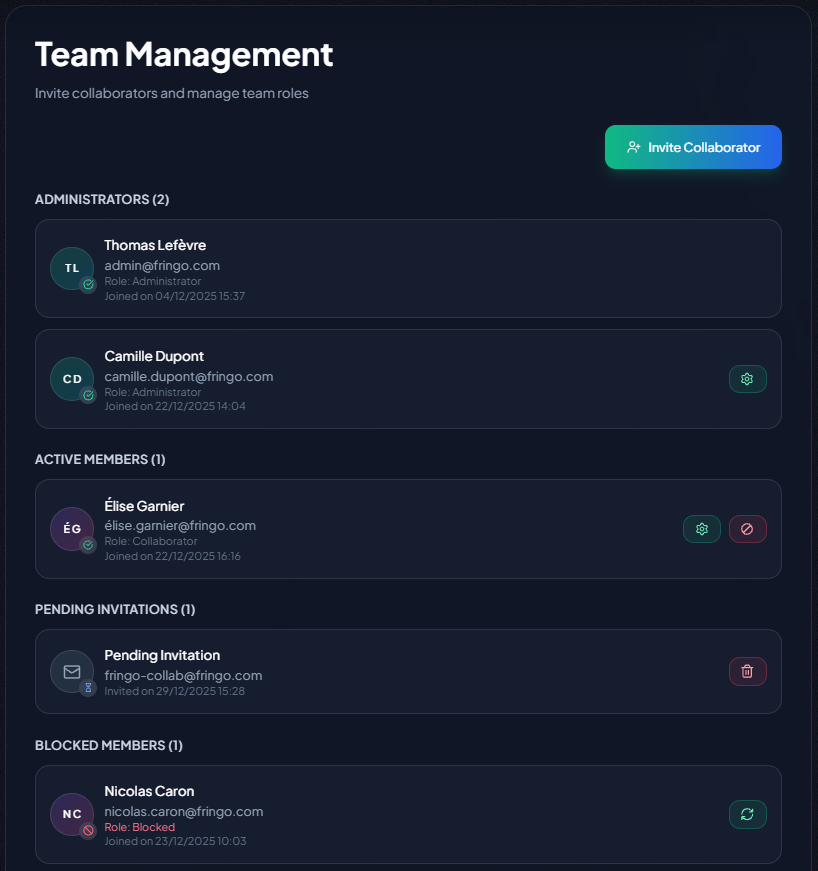
How to Manage Your Company Team
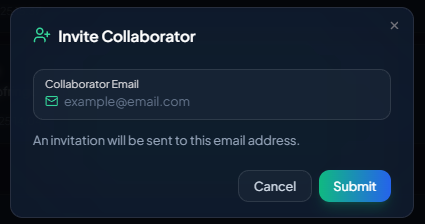
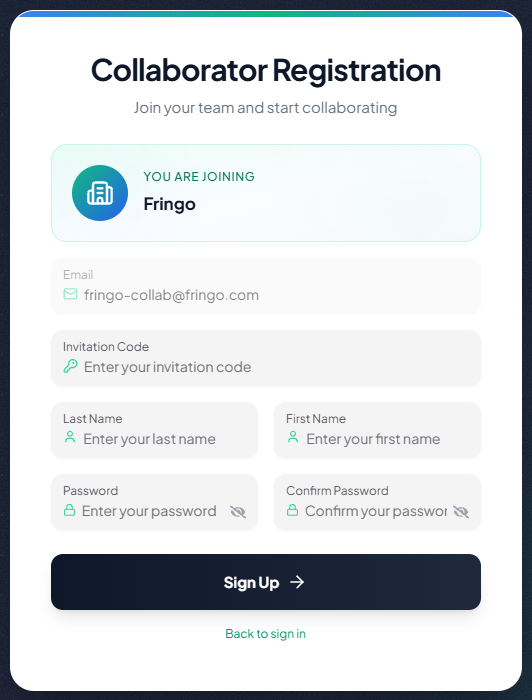
- Invite a Collaborator: Click the "Invite Collaborator" button and enter their email address. They will receive an email invitation with a link and a secret code to complete their secure registration.
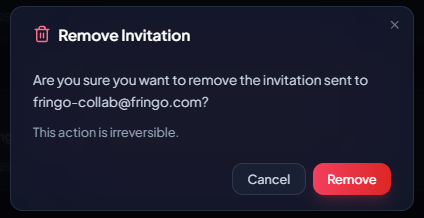
- Manage Pending Invitations: If an invited person hasn't created their account yet, you can cancel the pending invitation by clicking the delete icon. This is useful for security reasons or if team plans change.

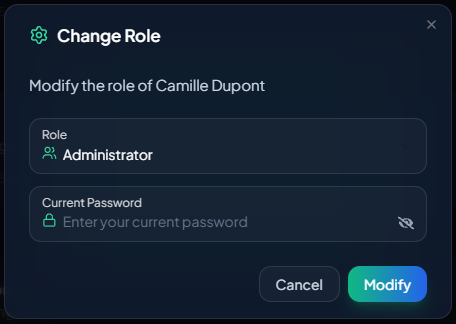
- Change a Member's Role: Use the dedicated button to promote a member from "Collaborator" to "Admin" (or vice-versa).
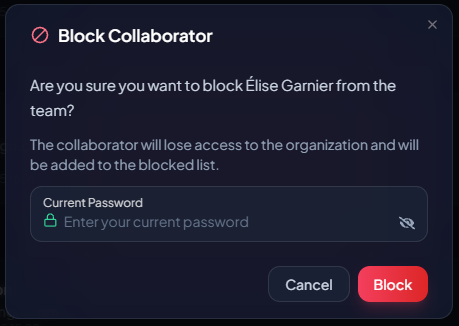
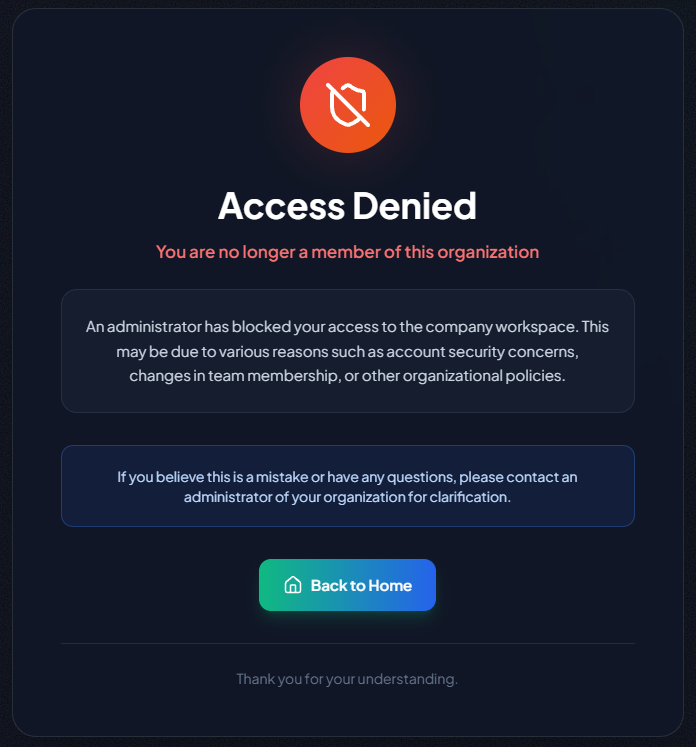
- Block a Member: If a collaborator leaves the company, you can block them. They will immediately lose access to your workspace. Blocked members appear in a separate list, visible only to Admins, and can be reactivated if needed.
3. At the Heart of the Action: Managing a Project Team
Each tender response is a self-contained mission with its own dedicated team.
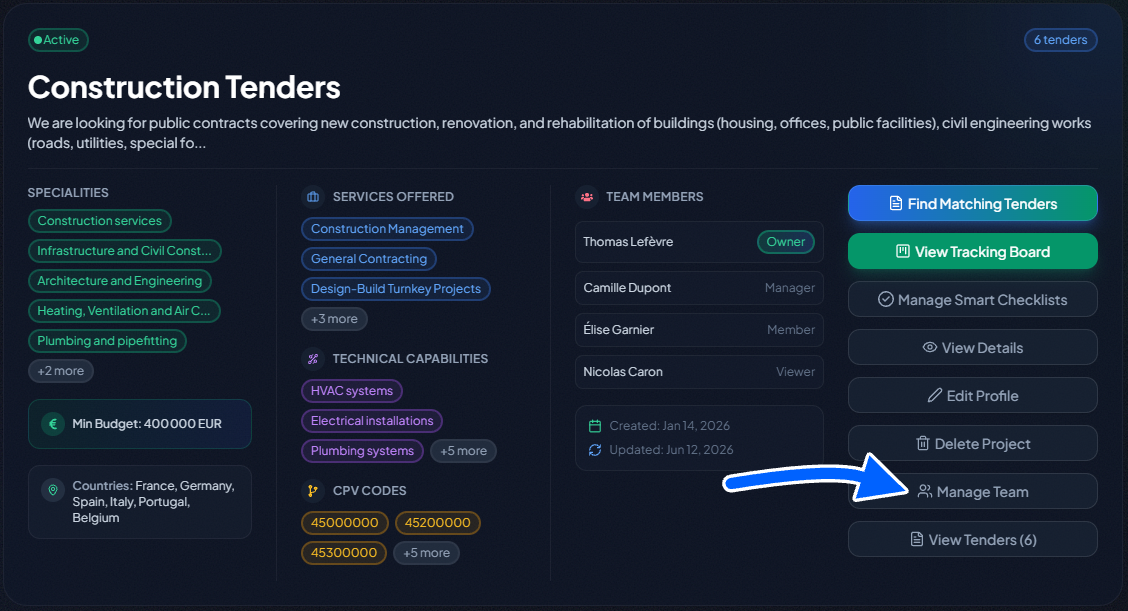
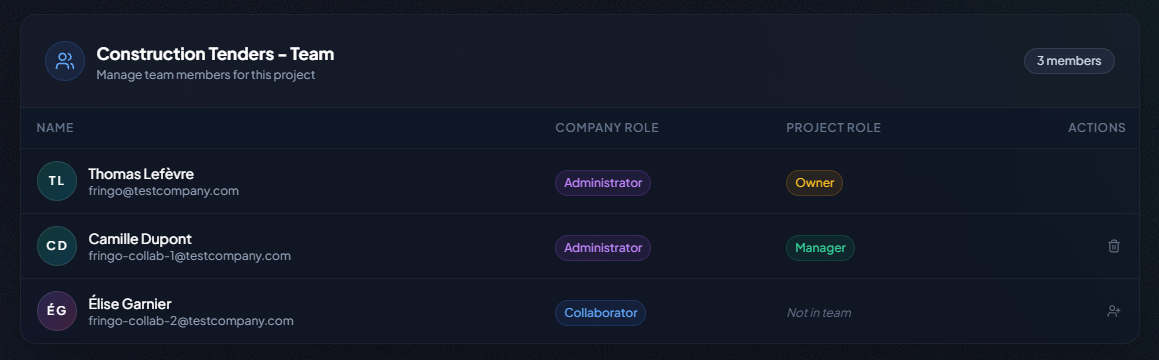
To manage a specific project's team, click the "Manage Team" button on the project card.
Roles Within a Project
Project roles are more granular to fit operational needs:
- Owner: The user (Admin or Collaborator) who created the project. This role is permanent, and the Owner cannot be removed from the project. They have full management rights over it.
- Manager: ** Holds extensive management rights over the project, comparable to those of the Owner. A Manager can manage the project team, edit the project profile, add or remove tenders, and drive all operational features (Smart Checklists, Task Management, AI Document Assistant, etc.). Unlike the Owner, a Manager can be removed from the team by the Owner, another Manager, or a Company Admin.
- Member: An intermediate operational role positioned between the Manager and the Viewer. A Member has nearly all the operational permissions of a Manager, except for project team management. They cannot delete documents from the AI Document Assistant, or delete tasks within tender task management.
- Viewer: ** A primarily read-only role, with some non-destructive enrichment capabilities. A Viewer can consult the project, its Tracking Board, and the full details of every tender. They can also run Smart Checklists to evaluate a tender, add notes to each tender submission workspace, and comment on tasks. However, they cannot edit the project profile, add or remove tenders, manage the team, modify tender details, change priority or assignments, create/edit/delete tasks, manage Smart Checklists at project level, or delete files from the AI Document Assistant.
Who Can Manage a Project Team?
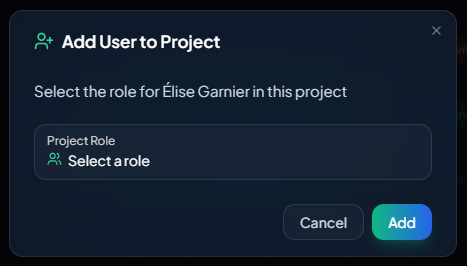
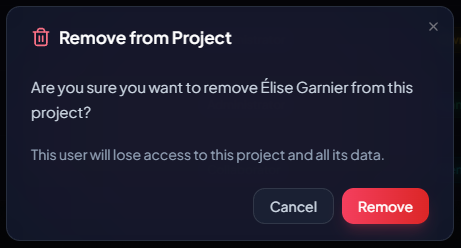
Management rights (adding, removing, and changing the roles of members) are reserved for:
- The project Owner.
- Project Managers.
- Company Admins (they have supervisory rights over all projects, even if they aren't team members).
Role Assignment Rules:
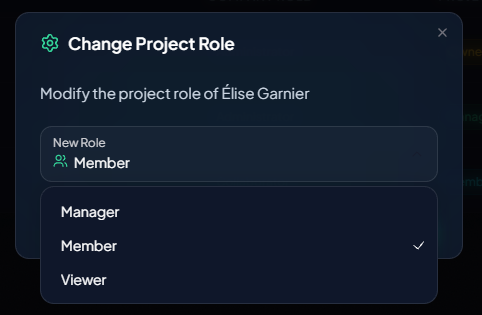
- A company Collaborator can be added to a project as a Manager, Member, or Viewer.
- A company Admin, when added to a project, can only be assigned the Manager role, reflecting their hierarchical status.
Important Note on Role Changes:
To maintain consistency and security, our system is smart. If a Collaborator is already part of several projects (as a "Member" or "Viewer") and a Company Admin promotes them to the Company Admin role, their role in all those projects will be automatically upgraded to "Manager". This ensures their project-level permissions always reflect their global status within the organization.
Conversely: if a Company Admin is downgraded to Collaborator, their roles in projects where they sat as a Manager (by hierarchical inheritance) are NOT automatically modified. The promoting Admin must, where appropriate, manually adjust this person’s role in each impacted project. This ensures that a company-level downgrade does not trigger an unintended loss of operational access on an in-flight project.
4. Permissions Summary Table
For a clear overview, here is a detailed table of permissions based on roles.
Note: A Company Admin has extended permissions that may override their specific role within a project.
| Action | Company Admin | Project Owner | Project Manager | Project Member | Project Viewer | Collab. not in project |
|---|---|---|---|---|---|---|
| Company Management | ||||||
| Manage the company team (invite, block, change roles) | ✅ | ❌ | ❌ | ❌ | ❌ | ❌ |
| Create projects | ✅ | ✅ | ✅ | ✅ | ✅ | ✅ |
| Delete any project | ✅ | ❌ | ❌ | ❌ | ❌ | ❌ |
| Manage the Company Knowledge Base | ✅ | ✅ | ✅ | ✅ | ✅ | ✅ |
| Project Management | ||||||
| Manage the project team | ✅ | ✅ | ✅ | ❌ | ❌ | ❌ |
| Edit the project profile | ✅ | ✅ | ✅ | ✅ | ❌ | ❌ |
| Add / Remove tenders | ✅ | ✅ | ✅ | ✅ | ❌ | ❌ |
| Manage project Smart Checklists (create / edit / delete) | ✅ | ✅ | ✅ | ✅ | ❌ | ❌ |
| Tracking Board and Tender Card | ||||||
| View the project Tracking Board (Kanban) | ✅ | ✅ | ✅ | ✅ | ✅ | ❌ |
| Move a tender card across columns (change status) | ✅ | ✅ | ✅ | ✅ | ❌ | ❌ |
| Change a tender’s priority | ✅ | ✅ | ✅ | ✅ | ❌ | ❌ |
| Assign team members to a specific tender | ✅ | ✅ | ✅ | ✅ | ❌ | ❌ |
| Open the tender summary sheet | ✅ | ✅ | ✅ | ✅ | ✅ | ❌ |
| Open the tender submission workspace | ✅ | ✅ | ✅ | ✅ | ✅ | ❌ |
| Access the AI match analysis | ✅ | ✅ | ✅ | ✅ | ✅ | ❌ |
| Tender submission workspace | ||||||
| View the tender submission workspace (details, reminders, notes, activity log) | ✅ | ✅ | ✅ | ✅ | ✅ | ❌ |
| Edit bid details (amount, dates) | ✅ | ✅ | ✅ | ✅ | ❌ | ❌ |
| Create / edit / delete reminders | ✅ | ✅ | ✅ | ✅ | ❌ | ❌ |
| Add a text note to the file | ✅ | ✅ | ✅ | ✅ | ✅ | ❌ |
| Pin/unpin note | ✅ | ✅ | ✅ | ✅ | ✅ | ❌ |
| AI Document Assistant (per tender) | ||||||
| Open the AI Document Assistant | ✅ | ✅ | ✅ | ✅ | ✅ | ❌ |
| Upload sources (tender documents) | ✅ | ✅ | ✅ | ✅ | ✅ | ❌ |
| Select / deselect sources (tender + Knowledge Base) | ✅ | ✅ | ✅ | ✅ | ✅ | ❌ |
| Chat with the AI agent (sessions) | ✅ | ✅ | ✅ | ✅ | ✅ | ❌ |
| Generate / delete reports | ✅ | ✅ | ✅ | ✅ | ✅ | ❌ |
| Delete uploaded files / sources | ✅ | ✅ | ✅ | ❌ | ❌ | ❌ |
| Smart Checklists (execution at tender level) | ||||||
| See the checklists available for the project | ✅ | ✅ | ✅ | ✅ | ✅ | ❌ |
| Run a Smart Checklist on a tender | ✅ | ✅ | ✅ | ✅ | ✅ | ❌ |
| Review executed checklist results | ✅ | ✅ | ✅ | ✅ | ✅ | ❌ |
| Re-run a checklist (refresh results) | ✅ | ✅ | ✅ | ✅ | ✅ | ❌ |
| Per-Tender Task Management | ||||||
| View the tasks of a tender | ✅ | ✅ | ✅ | ✅ | ✅ | ❌ |
| Create a task | ✅ | ✅ | ✅ | ✅ | ❌ | ❌ |
| Edit a task (title, description, priority, status, deadline, assignees, sub-tasks) | ✅ | ✅ | ✅ | ✅ | ❌ | ❌ |
| Comment on a task | ✅ | ✅ | ✅ | ✅ | ✅ | ❌ |
| View the activity log of a task | ✅ | ✅ | ✅ | ✅ | ✅ | ❌ |
| Delete a task | ✅ | ✅ | ✅ | ❌ | ❌ | ❌ |
Key takeaways
- Deleting Assistant files and deleting tasks: these two destructive actions are reserved for Company Admins, Project Owners, and Project Managers.
- Company Knowledge Base: this is a company-level resource (not a project resource). Any company collaborator can access it, regardless of their role in any given project — including a Project Viewer, since they remain a Company Collaborator.
- Project Viewer: can READ the AI analysis, run Smart Checklists, use AI Document Assistant, add notes, and comment on tasks, but cannot CHANGE anything (priority, status, profile, bid details, tasks, files).
- Collaborator not in project: sees nothing of the project data (board, tenders, files, AI Assistant, checklists, tasks). They only retain company-level permissions (create a project, access the Knowledge Base).
Conclusion: Your Team, Your Strength
TendHunter’s team management feature transforms how you approach tenders. By structuring your teams with clarity and security — and by tying those roles to the platform’s full operational toolset (Tracking Board, AI Document Assistant, Smart Checklists and Per-Tender Task Management) — you unleash the collaborative potential of your experts and align everyone toward a common goal: winning.
We invite you to explore these features today. Start by inviting your key collaborators and structuring your first project as a team.